When an associate moves to another cost center or location, transfer them. Don’t terminate them and add them again. A transfer keeps their occurrences, points and history with them, and their employee ID stays free of duplicates.
An associate and a TrackPath login are separate. This article is about moving an associate (a person you track attendance for). To move a manager’s or supervisor’s login to another account or cost center, see Transfer users to another account or cost center.
Who can transfer an associate
- Level 3 and Level 4 users can transfer associates.
- Level 1 and Level 2 users can’t. Ask a Level 3 or Level 4 user on your account, or TrackPath support.
See User access levels for more about each level.
You can transfer an associate to any cost center you have access to, including one in another of your accounts. To move someone to an account you don’t have access to, ask TrackPath support.
Transfer an associate
- Open the associate’s page.
- Select Transfer at the top of the page.

- If the associate is in more than one cost center, choose the cost center they’re leaving under Transfer from cost center.
- Under Transfer to cost center, select the new cost center. The list shows only the cost centers you have access to, grouped by account, with each cost center’s number in brackets.
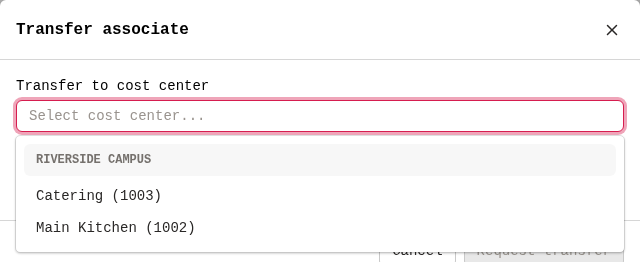
- Select Request transfer (Level 3) or Transfer associate (Level 4).
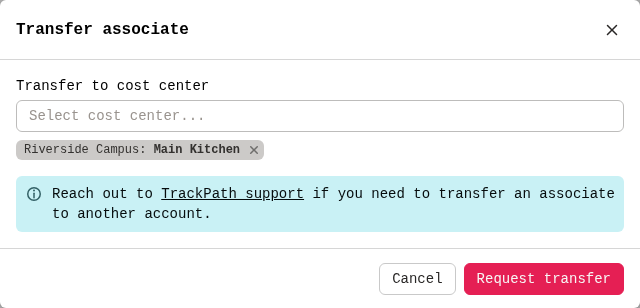
You can’t pick the cost center the associate is already in. If you do, the window shows “Transfer destination must differ from source cost center.”
What happens next
For Level 3 users the button says Request transfer and you’ll see “Transfer requested”, but the transfer is usually already done. You can approve transfers to any cost center you can pick, so TrackPath approves yours straight away. Check the associate’s page: it now shows the new account and cost center.
For Level 4 users, transfers are always approved immediately.
The Transfer action is greyed out while the associate already has a pending transfer, and while their account is locked (see Unlock your account). It isn’t shown for terminated associates or for associates pending termination. If your account doesn’t have an active subscription, you’ll be asked to upgrade first.
Pending transfers
A transfer only waits for approval when the person who made it can’t approve the destination cost center. When that happens:
- The associate’s page shows the banner Associate is pending a transfer to another cost center. Users who can approve see Approve transfer. Users who can cancel see Cancel transfer.
- The managers of the destination cost center get an email, Approval required for an associate transfer, with Approve transfer and Deny transfer buttons. Level 3 users who receive manager emails for that cost center get it too.
- Pending requests are listed under Associates → Transfer requests, with Approve and Deny on each one.
- When someone approves or denies the transfer, the person who requested it gets an Associate transfer accepted or Associate transfer denied email.
Move an associate to an account you don’t have access to
If the associate is moving to an account you don’t have access to, email support@trackpath.app with:
- The associate’s name and employee ID
- The name and number of the cost center they’re moving to
A TrackPath admin does the transfer for you. It takes effect immediately, and the associate keeps their history.
”An associate with this employee ID already exists”
If you see this when adding a new hire, the employee ID already belongs to an active or terminated associate somewhere in your organization. Usually the person worked at another account before. Don’t create them with a different ID. Instead:
- They were terminated from one of your accounts: find them under Associates → Terminations and undo the termination. Then transfer them if they’ve moved cost centers.
- They’re in an account you don’t have access to: email TrackPath support to transfer their existing record to your cost center, as described above.
If the person was removed from the roster, the window says that instead. Select Restore associate to bring them back with their points and history. If you don’t see the button, ask TrackPath support to restore them.
What moves with the associate
- If the new cost center is in another account, the associate moves to that account.
- Their occurrences, points, work rule violations, counseling and excused absences go with them, including deleted and archived ones.
- Occurrences and excused absences recorded before the move still show the cost center they were recorded at.
- A TrackPath login linked to the associate doesn’t move. To change which accounts or cost centers that login can access, see Transfer users to another account or cost center.